
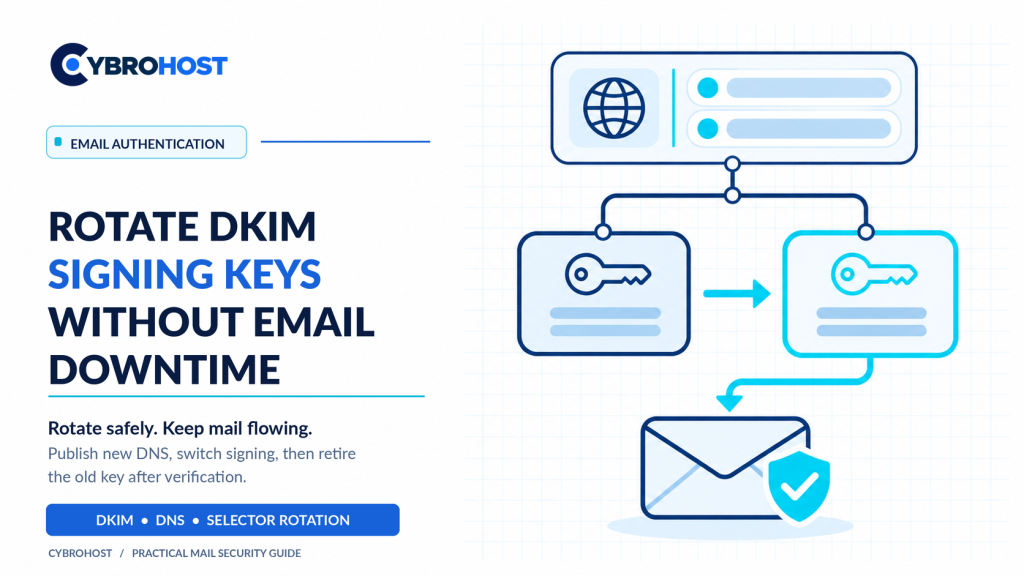
To rotate DKIM signing keys safely, publish a new public key before switching your mail server to its matching private key. Keep the old DNS record available while previously signed messages are still in transit. This approach avoids unnecessary authentication failures during a key change.
Why Rotate DKIM Signing Keys?
DKIM adds a cryptographic signature to outgoing email. Receiving servers use a public key in DNS to verify it. Rotating keys limits exposure if an old private key is compromised and supports routine security maintenance. The key is identified by a selector, such as mail2026a.
Step 1: Check Your Current DKIM Setup
Send a test email and inspect its DKIM-Signature header for the domain (d=) and selector (s=). Record the current DNS TXT entry and back up your OpenDKIM configuration. Check every system that signs mail for the domain, including relays and applications.
Step 2: Generate a New Key and Selector
On a Linux server using OpenDKIM, choose an unused selector, such as mail2026b. With a protected key directory already configured, generate a 2048-bit RSA pair:
sudo -u opendkim opendkim-genkey -b 2048 \
  -d example.com -s mail2026b \
  -D /etc/opendkim/keys/example.com
The command creates a private key and a TXT-record template. Restrict access to the private file. Never upload the private key to DNS or share it with other applications.
Step 3: Publish and Verify the New DNS Record
Add the generated TXT value at mail2026b._domainkey.example.com. Leave the existing selector unchanged. Wait until the new record is visible through DNS resolvers:
dig +short TXT mail2026b._domainkey.example.comConfirm that the TXT value is complete; long keys may appear as several quoted strings that DNS combines. Do not switch signing until the record resolves reliably.
Step 4: Switch the OpenDKIM Signing Selector
For a KeyTable and SigningTable installation, add the new private-key mapping to KeyTable:
mail2026b._domainkey.example.com example.com:mail2026b:/etc/opendkim/keys/example.com/mail2026b.privateUpdate the domain’s SigningTable entry to point to mail2026b._domainkey.example.com. Check file permissions and restart or reload OpenDKIM as supported. Keep the previous mapping and private key available for rollback.
Step 5: Test Email Authentication
Run opendkim-testkey with your domain, new selector, and private-key path. Then send mail to an external inbox. Check that DKIM-Signature uses s=mail2026b and the receiver reports dkim=pass. Also verify DMARC alignment with the visible From domain.
Step 6: Retire the Old Key After the Overlap
Keep both public keys published while older messages may still be queued or awaiting verification. Allow several days or longer according to your queue lifetime and DNS caching. Only then remove the old TXT record. The DKIM standard, RFC 6376, recommends overlapping selectors during rotation.
For self-managed email, CybroHost SMTP VPS Hosting provides Linux root access and DNS-related server controls.
FAQs
Can I rotate DKIM keys without stopping email?
Yes. Stage the new public key first, switch signing, and retain the old record during the transition.
Should I replace the key under the same selector?
No. Use a new selector to avoid DNS-cache conflicts between old and new keys.
How long should the old DKIM record remain?
There is no universal duration. Consider message delays, queue retention, and DNS caches before removal.
Final Recommendation
Publish, verify, switch, test, then retire. Keep rollback options ready and monitor authentication results after every DKIM rotation.
