
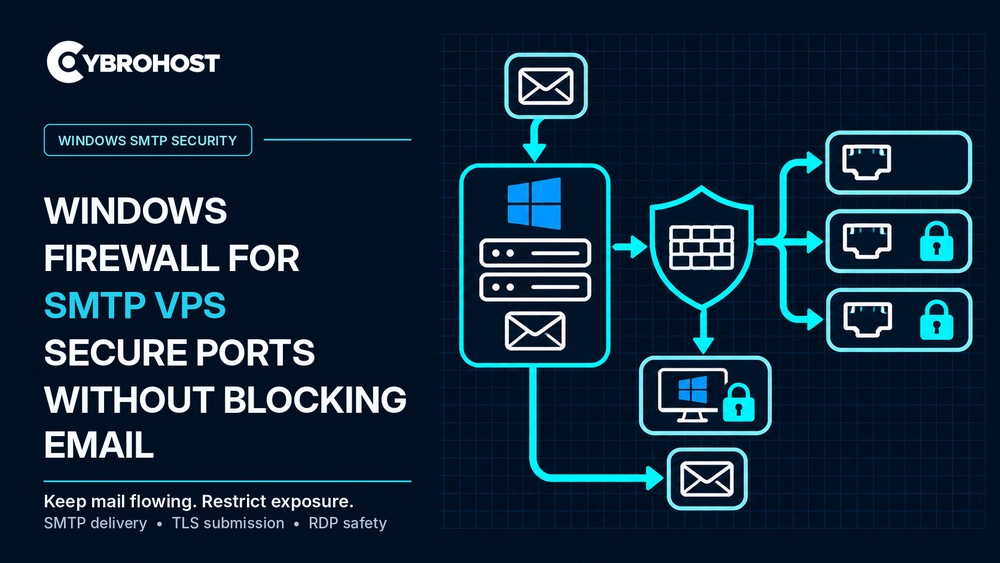
Windows Firewall for SMTP VPS hosting should allow legitimate email traffic while keeping unnecessary services closed. Opening every port is risky, but blocking the wrong one can stop messages or disconnect administrators. Follow this practical Windows Server checklist before changing firewall rules.
Windows Firewall for SMTP VPS: Which Ports Matter?
| TCP port | Purpose | When to allow inbound |
|---|---|---|
| 25 | Server-to-server SMTP | If your VPS receives email directly |
| 587 | Authenticated SMTP submission with STARTTLS | If applications or clients submit email |
| 465 | SMTP submission with implicit TLS | Only if your mail service enables it |
| 993 | Encrypted IMAP | Only if hosting user mailboxes |
| 443 | HTTPS webmail or administration | Only if the service is used |
| 3389 | Remote Desktop (RDP) | Restrict to trusted addresses or a VPN |
Do not open IMAP, POP3, or webmail ports when your VPS only sends mail. Also, opening a firewall port does not start a listening mail service.
Step 1: Protect Administrator Access First
Before editing rules, confirm you can access your hosting provider’s recovery console. Keep the current RDP session open. Record existing firewall rules and test changes from a second connection. Never broadly disable Windows Firewall just to troubleshoot SMTP.
Step 2: Allow Required Incoming SMTP Ports
Open PowerShell as Administrator. For a server that receives mail and supports client submission, run:
New-NetFirewallRule -DisplayName "SMTP Receive 25" -Direction Inbound -Protocol TCP -LocalPort 25 -Action Allow
New-NetFirewallRule -DisplayName "SMTP Submission 587" -Direction Inbound -Protocol TCP -LocalPort 587 -Action Allow
Add TCP 465 only if your mail software listens for implicit TLS. You can create equivalent rules in Windows Defender Firewall with Advanced Security → Inbound Rules.
Step 3: Restrict RDP Instead of Exposing It
Keep port 3389 available only through a VPN or trusted management IP addresses. Scope the existing RDP allow rules carefully rather than adding another unrestricted rule. Verify your alternative access method before removing old permissions.
Step 4: Check Outbound Delivery Rules
By default, Windows Firewall generally permits outbound traffic unless a policy or rule blocks it. Direct delivery to other mail servers requires outbound TCP 25. When a restrictive outbound policy is in place, allow that remote port for the required mail service. A provider-level network block cannot be fixed by Windows Firewall.
CybroHost Windows SMTP VPS Hosting lists port 25 availability, RDP access, and PTR/rDNS controls for self-managed servers.
Step 5: Secure MailEnable or SmarterMail
Check that MailEnable or SmarterMail actually listens on the enabled ports. Require authentication and TLS for submission on 587 or 465. Restrict relaying to authorized senders. Port 25 should normally accept legitimate inbound server mail without granting unrestricted relay access.
Step 6: Test Email and Review Logs
From a separate computer, run:
Test-NetConnection mail.example.com -Port 587Repeat for port 25 when receiving mail. A successful TCP test does not verify SMTP login or encryption. Send authenticated test messages, check inbound delivery if relevant, and inspect firewall and mail-server logs. Microsoft’s Windows Firewall command-line guide explains firewall rule management.
FAQs
Does an outbound-only SMTP VPS need inbound port 25?
Usually not. It needs outbound delivery access or an authorized relay, plus submission access where applicable.
Should I open port 3389 to everyone?
No. Limit RDP to trusted addresses or a secure VPN, and retain recovery access.
Will opening port 587 fix every sending problem?
No. Verify the listening service, TLS, credentials, relay permissions, and any provider firewall.
Final Recommendation
Open only the mail ports your workload needs, protect RDP, and test each change. Keep SMTP authentication, DNS settings, and relay security separate from firewall configuration.
