
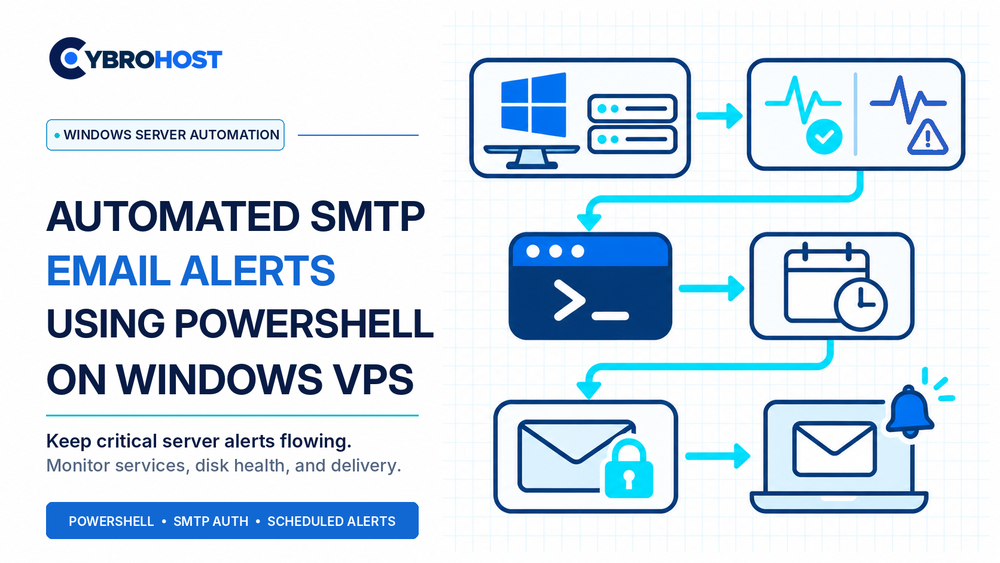
PowerShell SMTP email alerts help administrators detect failed services, low disk space, and other Windows VPS problems without watching a dashboard all day. A scheduled script can check server health and send a notification through an authenticated SMTP account. Here’s a secure starting point for business infrastructure.
Why Use PowerShell SMTP Email Alerts?
PowerShell can read Windows services, disk usage, and event logs. Pair it with Task Scheduler and a reliable mail server to send alerts automatically. However, alerts need clear thresholds, protected credentials, and rate limits to avoid flooding your inbox.
Step 1: Prepare SMTP Submission on Your VPS
Create a dedicated sender such as alerts@example.com. Configure your Windows mail software to accept authenticated port 587 with required STARTTLS and a trusted TLS certificate. Port 465 with implicit TLS is another option. Outbound port 25 is only needed if your mail server delivers directly to other servers.
CybroHost Windows SMTP VPS Hosting provides Administrator/RDP access, port 25 availability, and PTR/rDNS controls for self-managed Windows mail workloads.
Step 2: Use a Maintained SMTP PowerShell Module
Microsoft marks Send-MailMessage obsolete because it cannot guarantee a secure connection. Its official PowerShell documentation recommends modern alternatives. Install the Mailozaurr module, which supports SMTP and explicit STARTTLS:
Install-Module Mailozaurr -Scope AllUsersCheck the installed module version and review updates before deployment.
Step 3: Save SMTP Credentials Safely
Create a protected folder and run the following under the same Windows account that will execute the scheduled task:
New-Item C:\Ops -ItemType Directory -Force
Get-Credential | Export-Clixml C:\Ops\smtp.xml
Enter the dedicated SMTP username and password. Windows protects exported credentials for the same user on the same machine. Restrict folder permissions, and never commit credentials to source control.
Step 4: Write a Low-Disk Alert Script
Save this example as C:\Ops\smtp-alert.ps1. Replace the sender, recipient, and SMTP hostname with your own:
Import-Module Mailozaurr
$disk = Get-CimInstance Win32_LogicalDisk -Filter "DeviceID='C:'"
if ($disk.FreeSpace / $disk.Size -lt 0.15) {
    $cred = Import-Clixml 'C:\Ops\smtp.xml'
    Send-EmailMessage -From 'alerts@example.com' `
      -To 'admin@example.com' -Server 'mail.example.com' `
      -Port 587 -SecureSocketOptions StartTls `
      -Credential $cred -Subject 'Windows VPS: Low Disk Space' `
      -Body 'Drive C: has less than 15% space free.' `
      -ErrorAction Stop
}
This sends a warning when free space falls below 15%. Test the script interactively, then inspect SMTP logs and the recipient inbox. An accepted SMTP message is not proof of inbox delivery.
Step 5: Schedule, Test, and Prevent Alert Flooding
Open Task Scheduler → Create Task. Set a five-minute repeating trigger and run PowerShell with -NoProfile -File C:\Ops\smtp-alert.ps1. Use the credential-owning account, grant only necessary permissions, and test while logged out. Add a cooldown or incident-state check before production so every run does not resend the same warning.
FAQs
Can PowerShell send alerts through MailEnable or SmarterMail?
Yes. Both can accept authenticated SMTP submission when configured to allow the alert account.
Do scripts need outbound port 25?
No. The script usually submits on 587; the SMTP server handles onward delivery.
Will scheduled alerts run after RDP disconnects?
Yes, if Task Scheduler is configured correctly and the execution account can access its credentials.
Final Recommendation
Use PowerShell SMTP email alerts for measurable events, require TLS, protect credentials, and test both successful and failed delivery before relying on automation.
